Showing posts with label Unroot. Show all posts

Sunday, 12 January 2014

How To Easy Root and Unroot Motorola Droid X Easiest Method

How To Root or Unroot Motorola Droid X


Before Your Begin:
  • Charge your device upto 70% level. 
  • Make a backup of data for safety. 
  • Enable USB Debugging in your device.Click Here if you don't know how to enable.

Download Required Files:
How To Root Motorola Droid X:
  • Download Framaroot.apk app in you device. 
  • Install Framaroot.apk app in your device.(If you see an error, Go to Setting>Applications and enable Unknown Sources their and then try to install again). 
  • Launch framaroot app in your device. 
  • Now you will see some exploits in app. 
  • Select GANDALF Exploit from them. 
  • Application will automatically start rooting your device. 
  • It will take only few seconds and then restart your device. 
  • Your Motorola Droid X is successfully rooted now...

How To Unroot Motorola Droid X:
  • Download Framaroot.apk app in you device. 
  • Install Framaroot.apk app in your device.(If you see an error, Go to Setting>Applications and enable Unknown Sources their and then try to install again). 
  • Launch framaroot app in your device. 
  • Select Unroot from option. 
  • Then select GANDALF Exploit from the list of exploits. 
  • The Application will automatically Unroot your device. 
  • It take few seconds only then restart your device. 
  • Motorola Droid X is unrooted now... 

Thanks for visiting....Don't forgot to share & follow us on Social media..

How To Easy Root or Unroot Xolo Q700

Xolo Q700 is a dual-SIM phone packed with Android v4.2 (Jelly Bean) OS, quad core 1.2GHz processor, and 1GB RAM. The phone has 5MP back camera with LED flash & VGA front camera. For connectivity, it has Bluetooth, Wi-Fi, 3G, and USB. Its 2400 mAh battery gives 33 hrs music playback, 10 hrs video playback, 17 hrs 2G talk time, 16 hrs 3G talk time, 16 days 2G standby time, and 15 days 3G standby time. Other features include GTalk, dedicated Kids Mode with parental controls, and 4GB internal storage.Q700


1. Before You Begin:
  • This method is tested on Xolo Q700 only (Please don’t try on other devices) 
  • You need a Windows based PC or Laptop. 
  • Enable USB Debugging in your device
  • Download & Install Xolo Q700 USB Drivers in your PC. 
  • You device must charged 50% minimum.

2. Download Required Files:

3. Rooting/Unrooting Of Xolo Q700:

  • Please follow all the instructions given above for safe rooting. 
  • After Installing USB Drivers connect your device with PC and let him complete his driver installation. 
  • Download & Extract the Auto Root Tool zip file in a folder of your PC. 
  • After extracting you see a RunMe.bat file in folder. 
  • Now double click on RunMe.bat and launch it. 
  • A CMD Window open in your PC with some options. 
  • You will see “Please Enter A Valid Number (1 to x)”. 
  • Type 1 and press enter for start rooting,Your device reboot during the process. 
  • Your device automatically restart and you will find a SuperSu app in App Drawer. 
  • Congrats!!! you are successful in rooting. 
  • If you want to unroot your device follow the method same as for rooting,But when you click on RunMe.bat and some options appear on CMD window Type x for unroot and hit enter.
    So this is the method of Rooting & Unrooting of Xolo Q700….If you face any problem feel free to contact me by comment below or On our FB Page

    How To Unroot LG Optimus G Pro AT&T (E980) (Easy Method)

    How To Unroot LG Optimus G Pro AT&T (E980) (Easy Method)

    You think you device not running well because it is rooted.You want to unroot your device because you are facing lags and error So , EditAndroid.Com provide you the easiest method of unrooting... Please note that this method is only for rooted device in case you already installed custom recovery or custom rom this method not for you.We will also provide a solution for this in next couple of days... Here is the simplest way to unroot your LG Optimus G Pro with SuperSu app from chainfire If you are using any other root app you should replace it first
    Unrooting Of LG Optimus G Pro :
    • Factory reset, this is necessary if you want to revert the settings back to their factory defaults (Settings -> General tab -> Backup and reset), please keep in mind it will permanently erase all your data stored on the internal storage, so make sure you’ve a backup of it. (Optional) 
    • Now launch SuperSu app from your App Drawer. 
    • Goto Setting of SuperSu app and scroll down. 
    • Look for Full Unroot option their. 
    • An alert message will show up just tap on continue for Unrooting.
    Wait some time & your device will Reboot automatically , After booting up try to verify with Root checker app Your LG Optimus G Pro is unrooted now..

    How to Easy Root and Unroot XOLO Q1000 Smartphone

    Xolo Smartphones are popular in India because of its superb design with great specs and low price.Xolo Q1000 is new smartphone from Xolo with some great features in budget.Xolo Q1000 comes with a 1.2 GHz quadcore processor same you find in Micromax Canvas 4.Xolo Q1000 is loaded with Android 4.2 jellybean with 1Gb of Ram with 5inch HD Display.
    So, Today I will show you How To Root or Unroot Xolo Q1000
    1. Before You Begin:
    1. This method is tested on Xolo Q1000 only (Please don’t try on other devices) 
    2. You need a Windows based PC or Laptop. 
    3. Enable USB Debugging in your device.Follow this method if you don’t know how to enable. 
    4. Download & Install Xolo Q1000 USB Drivers in your PC. 
    5. You device must charged 50% minimum.
    2. Download Required Files:
    3. Rooting/Unrooting Of Micromax Canvas 4 A210:
    • Please follow all the instructions given above for safe rooting. 
    • After Installing USB Drivers connect your device with PC and let him complete his driver installation. 
    • Download & Extract the Auto Root Tool zip file in a folder of your PC. 
    • After extracting you see a RunMe.bat file in folder. 
    • Now double click on RunMe.bat and launch it. 
    • A CMD Window open in your PC with some options. 
    • You will see “Please Enter A Valid Number (1 to x)”. 
    • Type 1 and press enter for start rooting,Your device reboot during the process. 
    • Your device automatically restart and you will find a SuperSu app in App Drawer. 
    • Congrats!!! you are successful in rooting. 
    • If you want to unroot your device follow the method same as for rooting,But when you click on RunMe.bat and some options appear on CMD window Type x for unroot and hit enter.

    How To Root And Unroot Samsung Galaxy Y Duos GT-S6102

    Samsung Galaxy Y Duos is the Dual Sim variant of reputed Galaxy Y. It has certainly gained much popularity as its cousin Y. It is powered by 832Mhz processor, 290 MB RAM, 160 MB user accessible, 512 MB ROM, 2 GB, internal storage,3.14 in (80 mm) TFT FWVGA 320×240 px 256K Colors. It also has a 3MP camera with geotagging.


    1. Warning:
    Rooting can void warranty. Please be careful while executing these procedures.
    2. Download Required files:
    3. Rooting S6102:
    Enable the USB Debugging Mode on your Galaxy Y Duos. Follow the path to enable it - ‘Settings>Applications>Development>USB Debugging’. Now, check the USB Debugging option.
    • Before starting please backup all your data 
    • Copy the downloaded file into your SD card. Turn off phone. 
    • Press & hold ("Power + Volume Up + Home") keys & only let go of it when theSamsung Galaxy Y Duos logo appears. 
    • Now you enter recovery mode. Select the file "update.zip" from SD card. ( for scrolling use volume up and down keys. For selecting use home button) 
    • Confirm you selection by saying ‘Yes’ to the process. This may take few minutes to finish the process. 
    • Now, you have successfully rooted your Samsung Galaxy Y Duos.

      Congrats for rooting Y Duos!!.

      Note: If you have any problems after rooting like - no sound from speaker. SD cardnot recognized etc, you need to unroot before going to seller in order to claim warranty.


      4. Unrooting GT-S6102

      After rooting the device , if you feel to unroot in future, the following procedure will help you.
      • Download Unroot file given above. 
      • Uninstall all the Rooted apps 
      • Do the same procedure as did before but this time instaed of "update.zip" select "unroot.zip" 

      There your Y Duos is Unrooted Successfully!!!

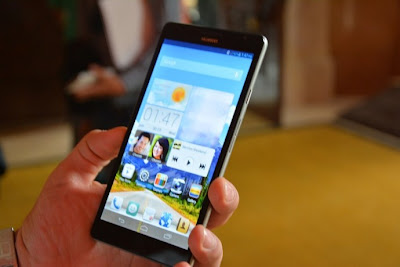
      HOW TO UNROOT THE HUAWEI ASCEND MATE

      Need to send in your device for warranty reasons? Make sure you unroot it first to reinstate your warranty. Rooting voids the warranty of the device and the only way to get it back is to unroot the device. Here’s how you can unroot your Huawei Ascend Mate and get your warranty reinstated


      I. Before You Begin:

      1. You should have rooted your device using the procedure given here.
      2. You must have a microSD card with at least 2GB of storage capacity.
      3. Your device should have at least 70% of battery life left.

      II. Downloading Required Files:


      1. Stock Firmware

      III. Unrooting the Huawei Ascend Mate:
      1. Download and place the Stock Firmware on your Desktop.
      2. Extract files from the firmware archive over to your Desktop.
      3. Plug in your device to your PC using the USB cable.
      4. Copy the dload folder you have on your Desktop over to the root of your SD card.
      5. Once the folder’s been copied, unplug your device from your PC.
      6. On your device, head to Menu>>Settings>>Storage>>Software Upgrade>>SD card Upgrade>>Confirm>>Upgrade.
      7. It should begin flashing the firmware on your device.
      8. Once the firmware’s been flashed, reboot your device.
      9. You’re done!

      Excellent! You have successfully unrooted your Ascend Mate and you now have your lost warranty back!

      How To Root,Unroot and Install Custom Recovery in LG Google Nexus 4 Easiest Method

      How To Root/Unroot/Install Custom Recovery in LG Google Nexus 4 Running On Android 4.2.2 Jellybean
                                              

      Before You Begin:
      • You need a Windows Based PC or Laptop. 
      • This method is tested on Nexus 4 only. 
      • This method is working on device with unlocked bootloader : Click Here For Unlocking 
      • Enable USB Debugging in your device.Click Here if you don't know how to enable. 
      • Charge your device 70% minimum. 
      • Make a backup of your device's data for safety.
      Download Required Files:
      How To Root Nexus 4:
      • Please follow all the instructions given above. 
      • Download the Nexus 4 Toolkit in your computer. 
      • Install Nexus 4 toolkit in your PC. 
      • During installation it will ask you which Nexus 4 you are using. 
      • Select the device and hit enter for next step. 
      • Type 1 and hit enter to install the drivers. 
      • Now connect your device to PC with USB cable. 
      • Now you see some options in Nexus 4 Toolkit. 
      • Select Root option for Root access,Unroot Option or Install Recovery option.Whatever you want.. 
      • Now it asks you to boot your device in fastboot mode.Turn off your device and then turn it on again with pressing & holding Volume Up+Volume Down+Power Button at same time until it turn on. 
      • Unplug your device and then plug it again.It will start installing fastboot drivers. 
      • After drivers installation follow the on screen instructions. 
      • If fastboot drivers didn't install.Download Drivers Here and install them manually.